
Memorandum
- From
- Connor Quincy via FOX News
- Date
- Filed
- Society·5 min to read
- Re
Lost-Phone Settings to Enable Before Your Device Goes Missing
ReLost-Phone Settings to Enable Before Your Device Goes Missing
iPhone, Pixel and Galaxy phones include built-in tools that can locate a missing device and protect its data, but most of them only work if they are switched on in advance. Here is what to check while your phone is still in your hand.
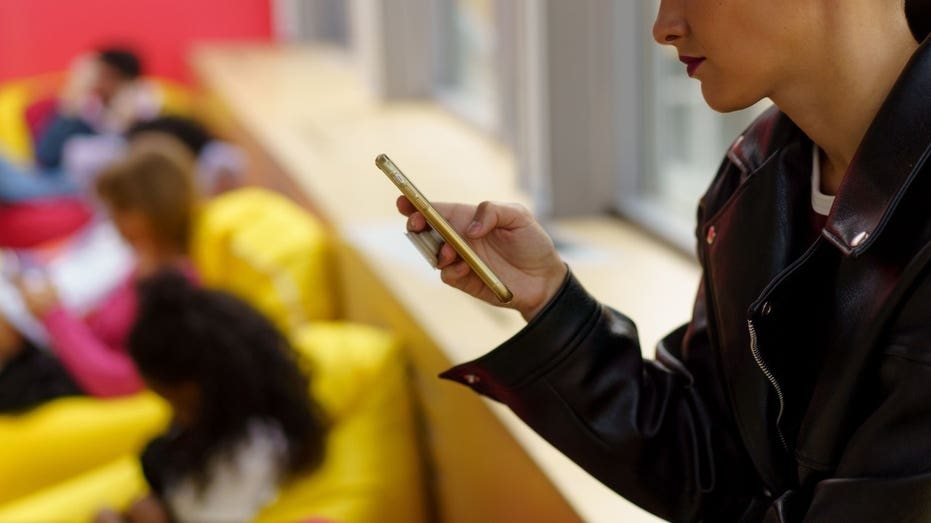
Losing a phone is a common and costly problem, and the worst moment to learn how its tracking tools work is after the device has already disappeared. Apple, Google and Samsung all build location and anti-theft features into their phones, but many of those safeguards only function if they were enabled beforehand. Taking a few minutes to review them while the phone is still in hand can make the difference between recovering a device and losing both the hardware and the data on it.
On an iPhone, Apple's Find My system can locate the handset whenever it is online. With the right settings turned on, supported models can also remain findable when they are offline or for a period after they have been switched off. The Find My network allows nearby Apple devices to help pinpoint an iPhone that cannot connect to Wi-Fi or cellular service. Apple says supported iPhones can be located through that network for up to 24 hours after being powered down, or for up to five hours while in power reserve mode.
A related setting, Send Last Location, automatically sends the phone's position to Apple when the battery reaches a critically low level. That can provide one more place to check if the battery dies before the owner realizes the phone is missing. Apple also offers Stolen Device Protection, found under Settings, then Face ID & Passcode. Once the passcode is entered, the feature can be switched on, and by default Apple applies added security requirements when the iPhone is away from familiar places such as home or work. Choosing the Always option under Require Security Delay strengthens those protections further.
Stolen Device Protection can require Face ID or Touch ID for sensitive actions, and certain account changes trigger a one-hour security delay followed by another biometric check. Find My cannot be turned off while the feature is active. That extra hurdle matters most when a thief has seen or learned the owner's passcode, a scenario that has fueled a rise in stolen-phone scams.
Google's lost-device service is now called Find Hub. On a Pixel that has a Google Account added, it is usually enabled automatically, but the settings are still worth checking in advance. For the broadest coverage, users can select the option labeled With network everywhere, which lets nearby Android devices help locate the phone when it cannot connect normally. Location services should also be on, and Google recommends setting a PIN, pattern or password, since a screen lock helps the device use Find Hub's end-to-end encrypted offline-finding network. Newer supported Pixel phones can remain findable for several hours after the battery runs out or the phone is powered off, provided Bluetooth, Location and offline finding were enabled beforehand.
Pixel owners can review additional theft safeguards under Settings, then Security & privacy, then Lost device protection. Depending on the device and software version, options may include Theft Detection Lock, Offline Device Lock, Remote Lock and Identity Check. These tools can lock the phone automatically in certain situations or require biometric authentication before sensitive account changes are made. Find Hub helps locate the handset, while the added protections help secure it if someone takes it.
Samsung Galaxy users can draw on both Google Find Hub and Samsung's own tools. A Samsung account on the phone is required for Samsung Find and SmartThings Find. Send last location preserves the phone's final known position, and offline finding lets nearby Galaxy devices help update the location when the phone cannot connect normally. Samsung cautions that if the phone is powered off, only its last known location may appear, which makes enabling these protections ahead of time especially valuable.
Galaxy owners can also keep Google Find Hub available. Samsung's current instructions say users can verify it by opening Settings, then Google Services, then Find Hub, tapping the device, opening Settings and confirming that Allow device to be located is turned on. Menu wording can vary by model, carrier and software version.
If a phone does go missing, Apple users can open Find My on another Apple device or use the Find Devices service through to view the phone on a map, play a sound or mark it as lost. Pixel and other Android owners can open the Find Hub app on another Android device or use the service through a web browser, with the option to erase the device remotely if recovery looks unlikely. Galaxy owners can turn to Samsung Find or SmartThings Find through their Samsung account.
3